What Are Transfers
Transfers are the processes of moving products and goods between the branches of your online store or different warehouses. This feature is one of the most important inventory management tools in MNASATI, as it helps you distribute products efficiently and meet the needs of each branch according to demand.
The Importance of the Transfer System
1. Advanced Inventory Management
The transfer system allows you to move products from branches with excess stock to those that need to replenish inventory, ensuring product availability across all locations.
2. Improved Operational Efficiency
Instead of ordering from suppliers, you can transfer products internally between your branches, which saves time and costs.
3. Accurate Tracking
Every transfer process is documented with a unique ID, along with a specific date and time, making review and auditing easier.
How to access the Transfers page and add a transfer operation between two branches
1. Log in to your store’s dashboard on Mnasati.
2. Look for the “Inventory” section.
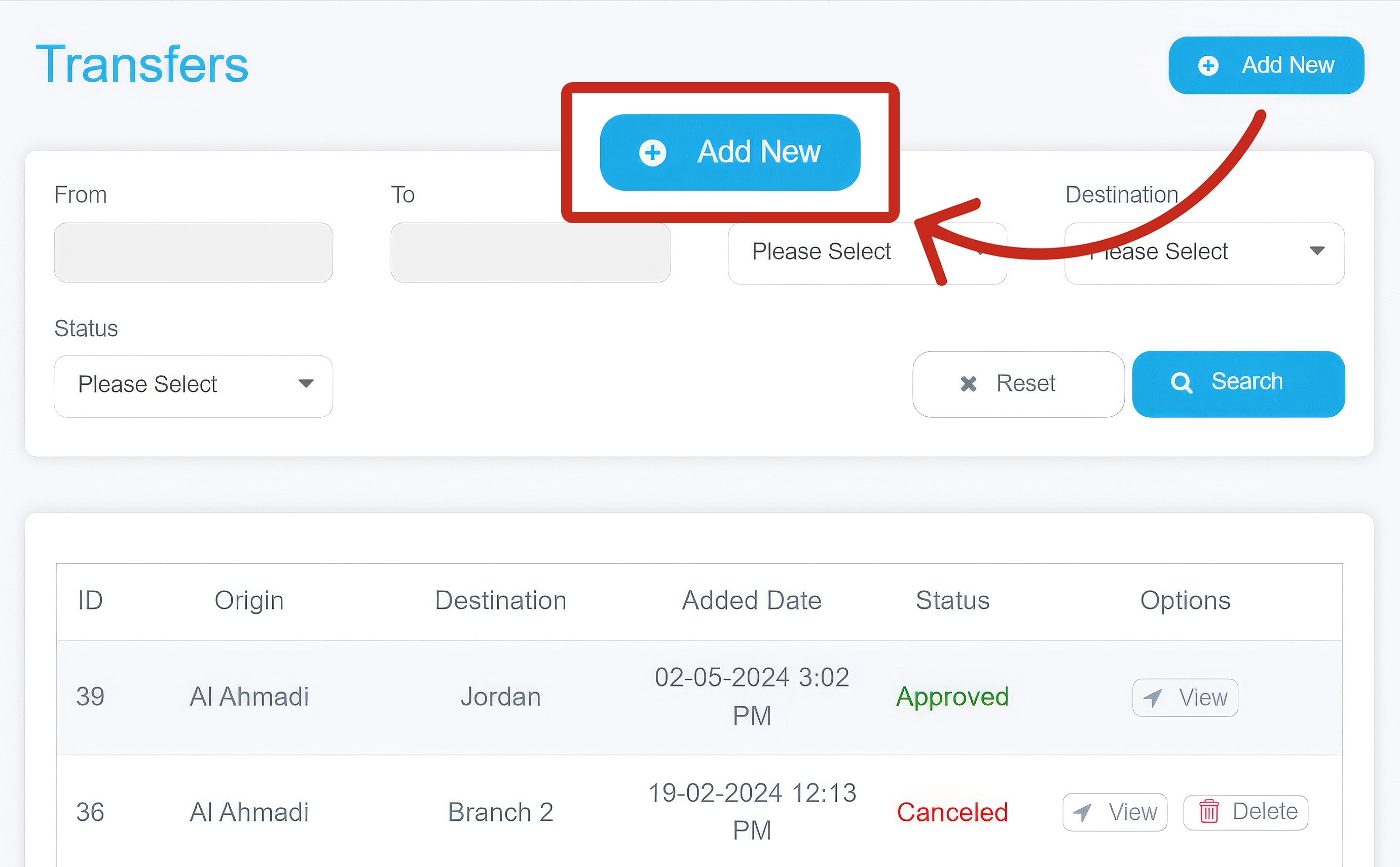
3. Click on “Transfers”—you will find this option within the Inventory menu.
4. A window will appear containing:
Add New Option
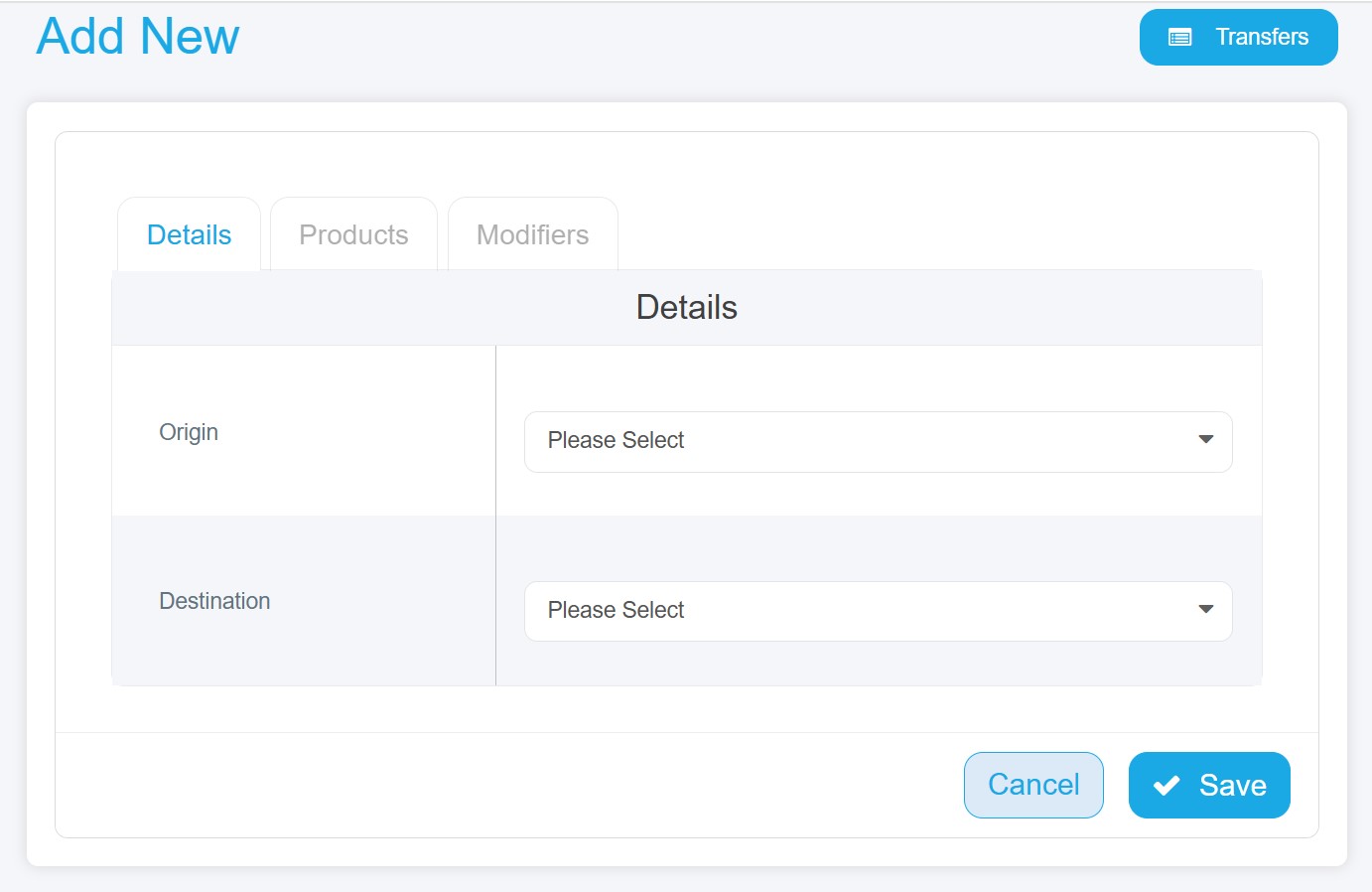
Located at the top of the window. When clicked, a new window will appear containing the main essential information, which includes:
· Details: This section contains two main options that must be specified:
Source: The branch sending the products
Destination: The branch receiving them
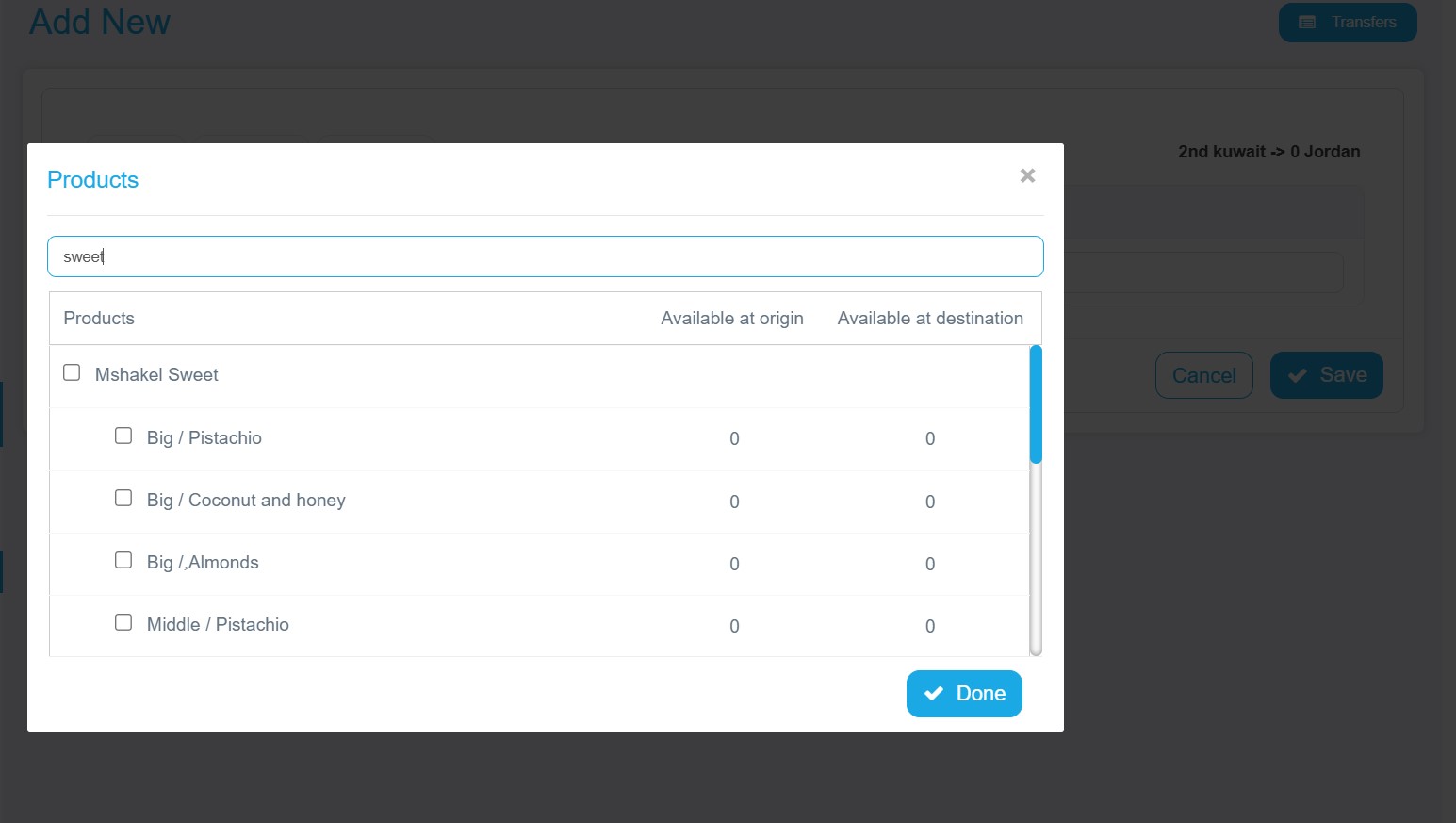
· Products: You can select the products to be transferred between branches by searching for them in the search box located at the top of the window. After selecting the product, a table will appear showing all its details, including the available quantity, along with a dedicated field for entering the quantity you wish to transfer.
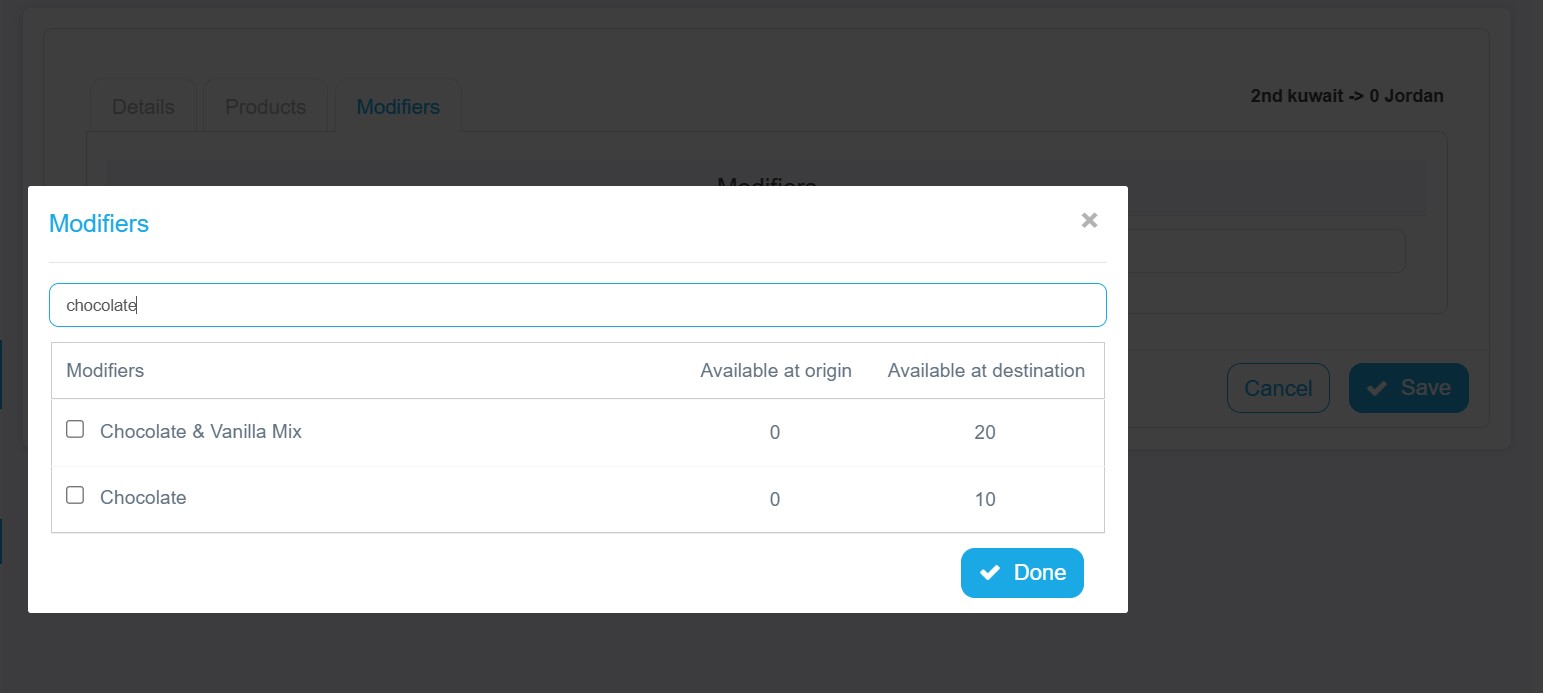
· Modifiers: Select the modifiers you want to transfer as well, and a table will appear with all details along with a dedicated field to add the quantity to be transferred.
A search box that includes
§ From–To: To specify the transfer date range between branches
§ Origin: The branch sending the products
§ Destination: The branch receiving the products
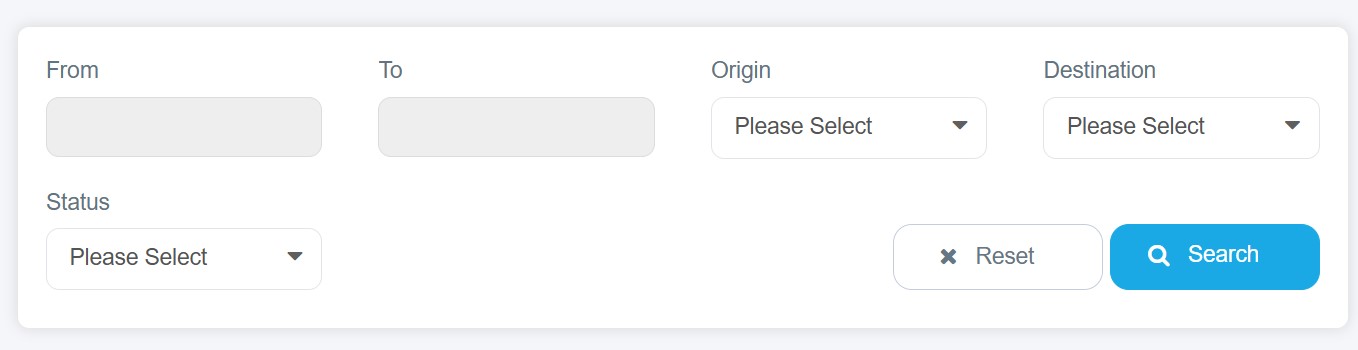
And you will find a comprehensive table displaying:
§ Basic transfer information:
· ID: A unique identifier for each transfer process
· From (Origin): The branch or warehouse sending the products
· To (Destination): The branch or warehouse receiving the products
· Added Date: The exact date and time when the transfer was created
§ Transfer Status: Clearly shows the status of each transfer, such as:
· Approved: The transfer has been accepted and received
· Pending: Awaiting approval
· Cancelled: The process has been canceled
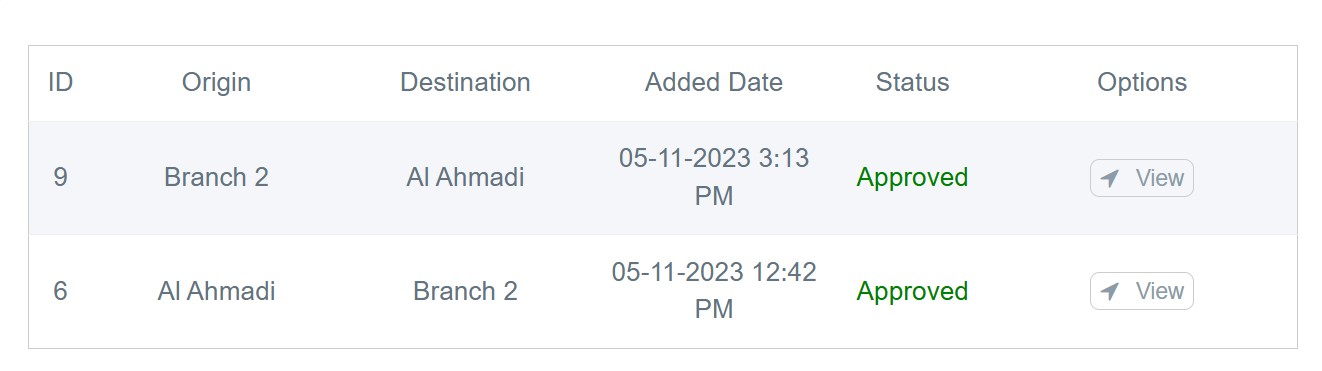
Action Tools include
· View: To display full details of the transfer, including:
§ Details tab: Includes information about the sending and receiving branches and the transfer status
§ Products tab: Includes thumbnail images of transferred products, their details, transferred quantities, and available quantities
§ Modifiers tab: Includes thumbnail images of modifiers and their details
If the transfer status is Pending, you will see options at the top of the screen to Accept or Cancel the transfer.
· Delete: To delete transfers that were canceled or are still pending from the transfer log.
· Edit: When clicked, a window appears containing:
§ Details: From here you can change both the sending and receiving branches
§ Products: You can add or remove products
§ Modifiers: You can add or remove modifiers